
WordPress 7.1 Is Putting the Post Editor in an iframe — What Plugin Developers Need to Fix
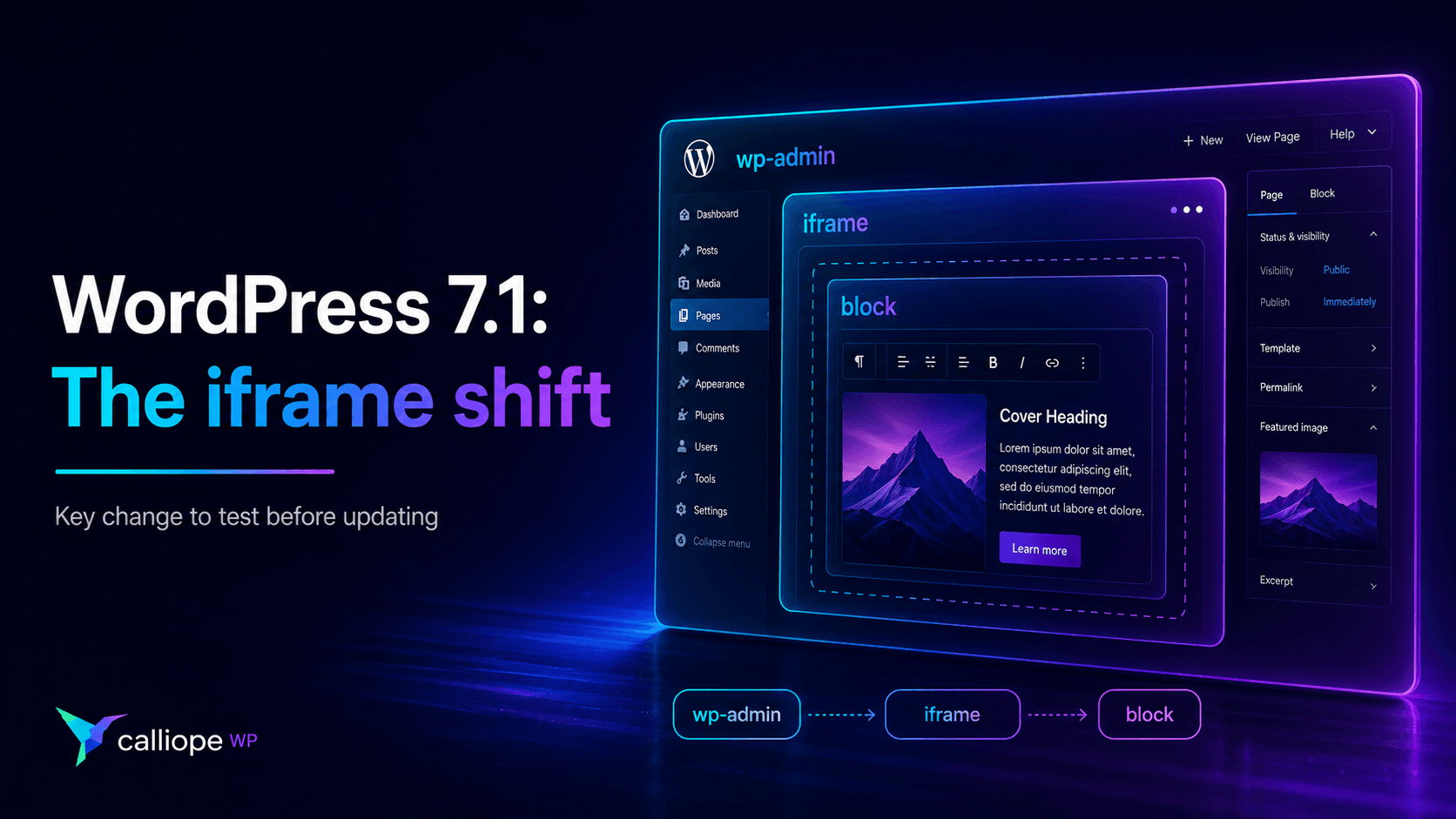
WordPress 7.1 changes something that may look almost invisible to users but can have very visible consequences for plugin developers: the Post Editor will now always run inside an iframe.
Until now, WordPress could fall back to a non-iframed Post Editor when the content contained an older block using Block API version 2 or lower. That compatibility path disappears in WordPress 7.1. Blocks using older API versions will still be loaded, but they will have to work inside the iframe.
For many plugins, nothing will break.
For others, especially plugins that manipulate the editor DOM, inject styles into the editing canvas, rely on the global window or document, or initialize third-party JavaScript libraries inside blocks, the change can expose assumptions that have been hiding in the code for years.
WordPress 7.1 is scheduled for release on August 19, 2026, and the release cycle reached Release Candidate 2 on August 12.
So this is a good time to understand what actually changed — and what you should test before your users discover the problem for you.
What does “the editor runs inside an iframe” actually mean?
The WordPress administration interface and the content being edited are no longer part of the same browser document.
Conceptually, the screen now looks more like this:
WordPress admin document
│
├── Editor toolbar
├── Plugin sidebars
├── Inspector controls
├── Other editor UI
│
└── iframe
    │
    └── Post content
        ├── Paragraph blocks
        ├── Images
        ├── Custom blocks
        └── Theme/block styles
The editor interface still lives in the parent WordPress admin page.
The actual post content lives inside another document: the iframe.
That separation gives WordPress several advantages. Admin CSS no longer leaks into the content canvas, block styles are better isolated from the administration interface, viewport-relative units such as vw and vh behave relative to the editing canvas, and media queries can behave much more like they do on the frontend.
For block and theme developers, that is ultimately a better architecture.
But it changes one important assumption:
document
does not necessarily mean the document containing your block anymore.
The most common problem: using the global document
Imagine a block that needs to find an element after rendering.
Older code may contain something like this:
const slider = document.querySelector( '.my-plugin-slider' );
This assumes that the block and the JavaScript executing that query belong to the same document.
Inside the iframed editor, that assumption can be wrong.
Editor scripts generally run in the parent admin document, while the block itself is rendered inside the iframe. WordPress specifically warns that directly accessing global document or window to interact with editor content may therefore stop working.
A better approach is to start from the actual block element.
For React-based blocks, WordPress recommends using a ref and deriving the correct document from the element itself.
For example:
import { useBlockProps } from '@wordpress/block-editor';
import { useRefEffect } from '@wordpress/compose';

export default function Edit() {
    const ref = useRefEffect( ( element ) => {
        const { ownerDocument } = element;
        const { defaultView } = ownerDocument;

        const handleResize = () => {
            // Work with the correct iframe window.
        };

        defaultView.addEventListener( 'resize', handleResize );

        return () => {
            defaultView.removeEventListener( 'resize', handleResize );
        };
    }, [] );

    const blockProps = useBlockProps( { ref } );

    return (
        <div { ...blockProps }>
            My custom block
        </div>
    );
}
The key pieces are:
element.ownerDocument
and:
element.ownerDocument.defaultView
Instead of assuming which browser document contains the block, the code asks the block element itself.
That pattern also makes the code more portable outside WordPress.
apiVersion: 3 is no longer something to postpone
WordPress introduced Block API version 3 back in WordPress 6.3.
One of its important characteristics is compatibility with the iframed editor. WordPress 6.9 began warning developers about blocks registered with API versions below 3, and the current block schema expects version 3.
A modern block.json should therefore look something like this:
{
    "$schema": "https://schemas.wp.org/trunk/block.json",
    "apiVersion": 3,
    "name": "example/my-block",
    "title": "My Block",
    "category": "widgets",
    "editorScript": "file:./index.js",
    "editorStyle": "file:./index.css",
    "style": "file:./style-index.css"
}
Simply changing:
"apiVersion": 2
to:
"apiVersion": 3
is not the migration.
It is the declaration that your block has already been tested in that environment.
Test first. Change the version after the block behaves correctly.
CSS problems can appear too
The iframe solves one of the block editor’s oldest styling headaches: CSS from wp-admin and CSS from the content canvas are now separated much more cleanly.
But plugins that accidentally depended on that leakage may notice differences.
For example, suppose a plugin added:
.wp-admin .my-custom-block {
    margin-top: 20px;
}
and expected it to style content inside the editor.
The block is now inside another document. The .wp-admin ancestor exists in the parent page, not around the content inside the iframe.
The selector no longer describes the DOM structure you are styling.
This is why block assets should be registered according to where they actually belong.
editorStyle is intended for styles used by the block in the editor, while block styles can be registered so they are available where the block itself is rendered. WordPress maintains a dedicated guide for enqueueing editor assets because the distinction between editor interface and editor content has become increasingly important.
The iframe does not create the distinction.
It simply makes incorrect assumptions easier to detect.
Third-party JavaScript libraries deserve special attention
Sliders, galleries, drag-and-drop libraries, chart libraries and older jQuery plugins often assume that there is only one global browser document.
That assumption is not unique to WordPress, but the iframed editor exposes it quickly.
If a library accepts a target element, initialize it with the block element rather than asking the library to search the global DOM.
For example, this pattern is much safer:
const ref = useRefEffect( ( element ) => {
    initializeSlider( element );

    return () => {
        destroySlider( element );
    };
}, [] );
WordPress shows the same approach for libraries such as jQuery-based Masonry: pass the actual block element to the library rather than asking it to discover the element through the global document.
If a third-party library internally relies on global document or window and gives you no way to change the target, things get more complicated.
The ideal solution is an upstream fix.
The WordPress migration guide recommends libraries derive their context from ownerDocument and defaultView, and even documents patching dependencies as a temporary option when an upstream change is not immediately available.
That is an important clue when debugging:
If your React code looks correct but a block still fails only in the editor, inspect the dependencies too.
Don’t confuse the editing canvas with the editor interface
A plugin sidebar and a custom block live in very different places.
This matters more than ever.
A plugin sidebar belongs to the editor UI in the parent page.
The block preview belongs to the content iframe.
If your plugin communicates between both, be deliberate about which element belongs to which document.
Consider a plugin that lets users configure a visual component from a sidebar.
The sidebar may legitimately interact with the parent editor environment, while the rendered component must work inside the iframe.
Trying to solve both through a global DOM query is exactly the kind of architecture that becomes fragile after this change.
Data flow should generally happen through WordPress state, attributes, props or appropriate APIs — not by reaching across documents and modifying arbitrary DOM nodes.
Why WordPress is doing this
It is tempting to see an iframe as another compatibility problem developers have to solve.
But there is an architectural reason behind it.
When the editing canvas shares the same document as wp-admin, CSS rules from two very different environments can influence each other.
A frontend stylesheet might accidentally affect editor controls.
An administration stylesheet might accidentally change block content.
Responsive CSS also becomes difficult because the browser viewport and the editor canvas are not necessarily the same size.
The iframe establishes a real boundary.
WordPress describes style isolation, proper viewport-relative units, native media-query behavior and closer parity between frontend and editor markup as some of the primary advantages of this architecture.
In other words, the short-term migration cost buys a cleaner development model.
How to test your plugin now
You do not need to wait for the final WordPress 7.1 release.
The official migration guide recommends testing with Gutenberg 23.6 or newer, where the Post Editor already runs inside the iframe unconditionally.
You can also test against the WordPress 7.1 Release Candidate on a disposable development or staging installation.
Open posts containing every custom block your plugin registers and exercise the parts users actually interact with.
Pay particular attention to blocks containing sliders, modals, tooltips, drag-and-drop behavior, custom keyboard events, direct DOM manipulation, dynamic resizing or third-party JavaScript libraries.
Then open the browser console.
Some iframe-related failures are extremely obvious there even when the block itself only appears slightly broken.
A practical compatibility checklist
Before declaring a block ready for WordPress 7.1:
- Confirm that its
block.jsonuses Block API version 3 after compatibility has been tested. - Search JavaScript for direct uses of global
documentandwindow. - Check every DOM query that expects to find elements inside a block.
- Use refs and
ownerDocument/defaultViewwhen working with editor content. - Review third-party libraries for assumptions about the global browser document.
- Verify that editor-content CSS does not depend on
.wp-adminor other parent-page selectors. - Check that scripts and styles are registered for the correct editor context.
- Test interactive blocks, not just static rendering.
- Test creating, editing, saving and reopening the post.
- Check the JavaScript console for errors and deprecated behavior.
One mistake worth avoiding
Do not make your plugin detect WordPress 7.1 and add a collection of version-specific hacks.
The iframe is not a temporary WordPress 7.1 experiment.
It is the direction the Block Editor architecture has been moving toward for years.
The more robust solution is to remove assumptions about global browser state.
Code that begins with the element it owns and derives its environment from that element is more resilient than code that assumes every component on the page shares the same document.
That principle applies well beyond WordPress.
The change is small on screen and large underneath
Most WordPress users will never know that their editing canvas lives inside an iframe.
That is probably a sign that the transition worked.
Plugin developers do not have that luxury.
If your plugin registers custom blocks, interacts directly with editor content or relies heavily on JavaScript libraries, WordPress 7.1 is a good reason to audit those assumptions now.
The encouraging part is that the migration is usually not a redesign.
For many blocks, it is a matter of correctly identifying the document they belong to, loading assets in the right context and removing a few global DOM assumptions.
And once those changes are made, the result is not merely “compatible with WordPress 7.1.”
It is cleaner block-editor code.