
WordPress 7.1 Is Almost Here: What Site Owners and Agencies Should Check Before Updating
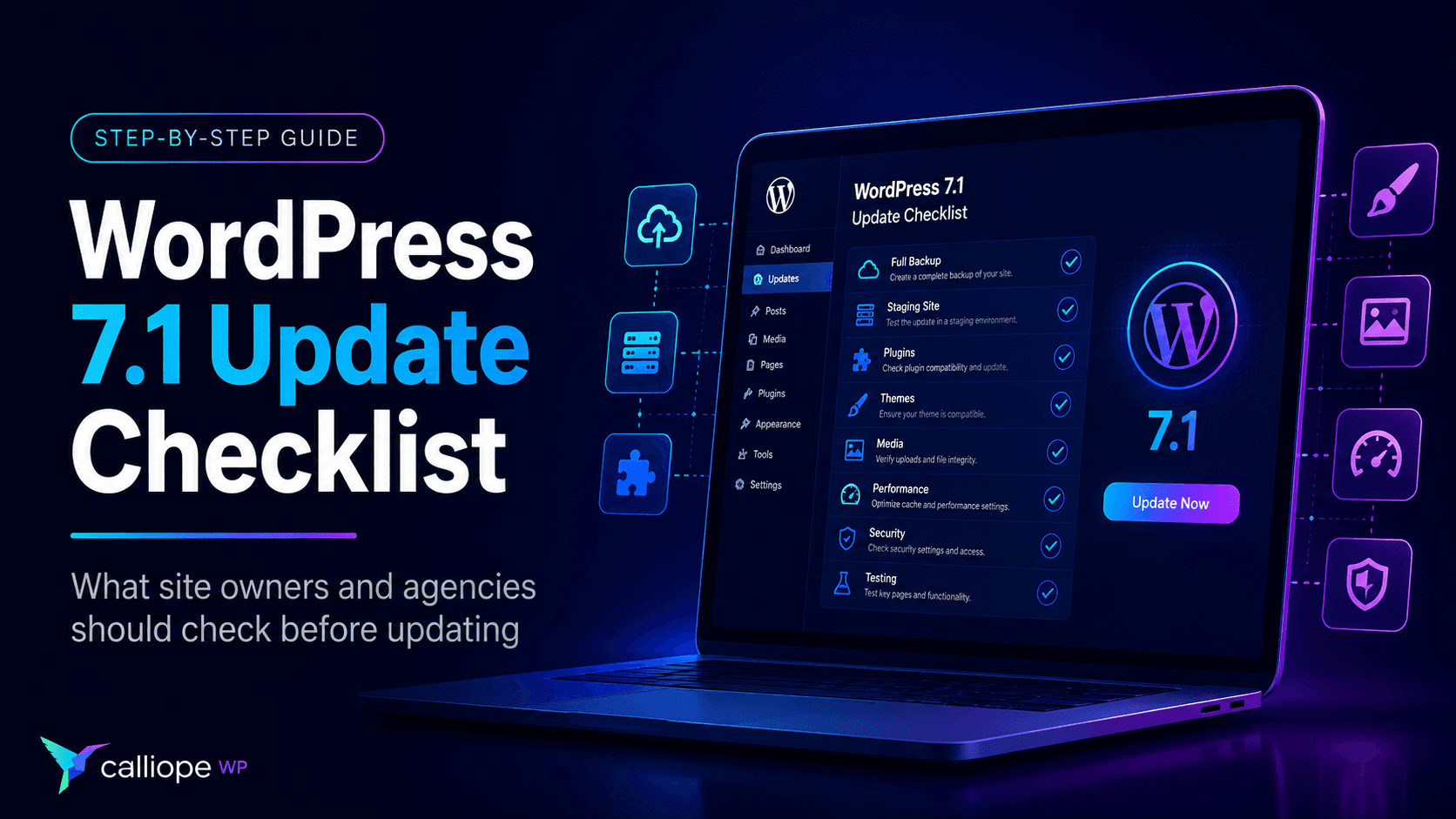
WordPress 7.1 is almost here, and for most site owners the update will eventually be as simple as clicking a button. But for agencies, developers, WooCommerce stores, membership sites, and businesses that depend on WordPress every day, a major Core update deserves a little more preparation.
WordPress 7.1 is scheduled for release on August 19, 2026. As of August 10, the release is in its final Release Candidate phase, which means the feature set is largely settled and testing is focused on finding regressions and compatibility issues before the public release.
The good news is that you do not need to panic, disable every plugin, or postpone the update indefinitely. The better approach is to understand what is changing, identify the parts of your site most likely to be affected, test them in a safe environment, and then update with a recovery plan.
This guide focuses on exactly that: what WordPress site owners and agencies should check before updating to WordPress 7.1.
First: WordPress 7.1 Is a Major Release, Not a Security Patch
It is useful to separate two different types of WordPress updates.
Minor releases such as WordPress 7.0.3 can contain security and maintenance fixes. WordPress 7.0.3, released on August 6, includes several security fixes, and WordPress recommends updating affected sites immediately.
A major release such as WordPress 7.1 introduces a much broader set of changes across Core, the editor, media handling, APIs, accessibility, administration, and developer-facing behavior.
If your production site is still running an older 7.0.x version, do not confuse “waiting for 7.1” with “delaying a security update.” Security maintenance and major-version rollout are different decisions.
You can follow the current release status on the official WordPress 7.1 development page and the WordPress release archive.
What Is Actually Changing in WordPress 7.1?
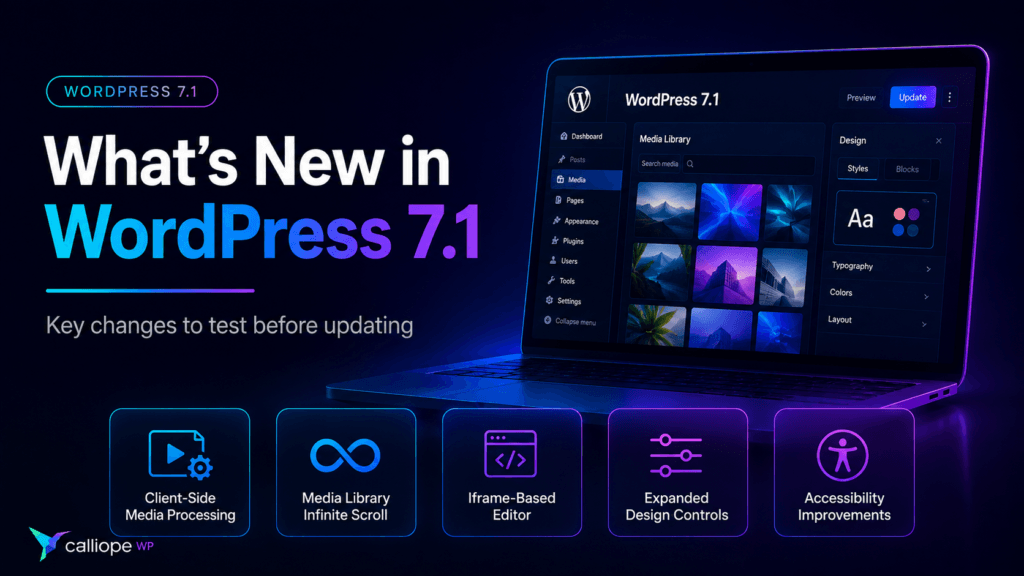
WordPress 7.1 includes hundreds of Core and editor changes. Most users will never notice every individual ticket, but several areas are important enough to include in an update plan.
1. Media Processing Moves Partly Into the Browser
One of the most significant changes in WordPress 7.1 is client-side media processing.
Traditionally, when WordPress receives an image upload, PHP and the server’s image library perform work such as resizing, generating thumbnails, rotating images, and applying format conversions. In WordPress 7.1, supported browsers can perform a substantial part of that image processing locally using WebAssembly before the processed files are uploaded to the server.
For ordinary users, this should mostly feel transparent. For some sites, it can reduce pressure on server-side image processing and make media handling more consistent across hosting environments.
For developers and agencies, however, this is one of the first areas worth testing if the site uses:
- Custom image sizes.
- Automatic WebP or AVIF conversion.
- Watermarking.
- Image optimization plugins.
- CDN synchronization.
- Custom attachment-processing hooks.
- HEIC uploads from iPhones.
- Animated GIF workflows.
- Plugins that modify uploaded media immediately after upload.
WordPress has specifically asked plugin and theme developers to test custom image sizes, output formats, HEIC, AVIF, HDR images, animated GIFs, and post-processing integrations against the new media pipeline.
2. The Media Library Grid Uses Infinite Scrolling by Default
WordPress 7.1 changes the default browsing behavior of the Media Library grid by enabling infinite scrolling. Users who prefer the previous pagination behavior can restore it through a per-user option.
This may sound like a small interface change, but media-heavy websites should still test the Media Library with a realistic number of files. If your editorial team manages thousands of images, PDFs, product assets, or downloads, usability under real data matters more than how the screen behaves on a fresh staging site with twenty attachments.
3. The Editor Becomes More Consistently Iframe-Based
WordPress 7.1 completes more of the move toward an iframe-based post editor. For most authors this is an implementation detail, but it can matter to plugins that inject JavaScript or CSS into the editing experience.
If your site uses custom blocks, custom editor panels, page-builder integrations, editorial tools, or internal plugins that manipulate the editor DOM directly, test them carefully. Code that assumes the editor content lives in the same document as the surrounding WordPress administration interface can behave differently once an iframe boundary is involved.
4. Global Styles and Block Design Controls Continue to Expand
WordPress 7.1 expands styling capabilities for blocks and themes, including responsive style variations, configurable viewports, additional interaction states, text-shadow support, background-gradient support, and minimum-width controls.
These are useful additions, but they also mean agencies maintaining custom block themes should test their design systems rather than assuming every visual control will interact perfectly with existing theme.json settings and custom CSS.
5. Accessibility Improvements Affect Several Administration Interfaces
WordPress 7.1 includes accessibility improvements across administration screens, list tables, setup flows, navigation, widgets, and editor interfaces. The release improves semantics, keyboard and pointer behavior, focus handling, contrast, and contextual information.
For most sites this is good news with little required action. If you maintain custom admin screens or highly customized editor experiences, however, it is worth checking that your own controls still behave correctly alongside the updated Core patterns.
6. The WordPress Toolbar Becomes More Persistent Across Editor Screens
WordPress 7.1 makes the admin toolbar more consistently available while navigating supported editor screens. Plugins or themes that add custom toolbar items should confirm that those items behave correctly during editor navigation and do not assume a full-page reload every time the user changes context.
What Is Not Coming in WordPress 7.1?
Release-cycle discussions can easily create confusion because features are tested publicly before the final scope is settled. Two highly discussed changes did not make the final WordPress 7.1 feature set.
React 19 Is Not Included
The planned React 19 upgrade was deferred beyond WordPress 7.1. It remains available as an experiment in the Gutenberg plugin, but WordPress 7.1 itself does not make React 19 the Core runtime.
This matters because early 7.1 development discussions correctly encouraged developers to test React 19 compatibility. That testing is still valuable for future releases, but you should not audit a production site’s WordPress 7.1 update under the assumption that React 19 is part of this release.
Real-Time Collaborative Editing Is Not Enabled
WordPress contributors also spent significant time testing real-time collaborative editing during the 7.1 cycle. The feature is not enabled in the final WordPress 7.1 release. Development and compatibility work continue for a future integration.
That distinction is important when reading older previews of WordPress 7.1. Always compare early roadmap posts with the final WordPress 7.1 Field Guide before planning around a feature.
The WordPress 7.1 Pre-Update Checklist
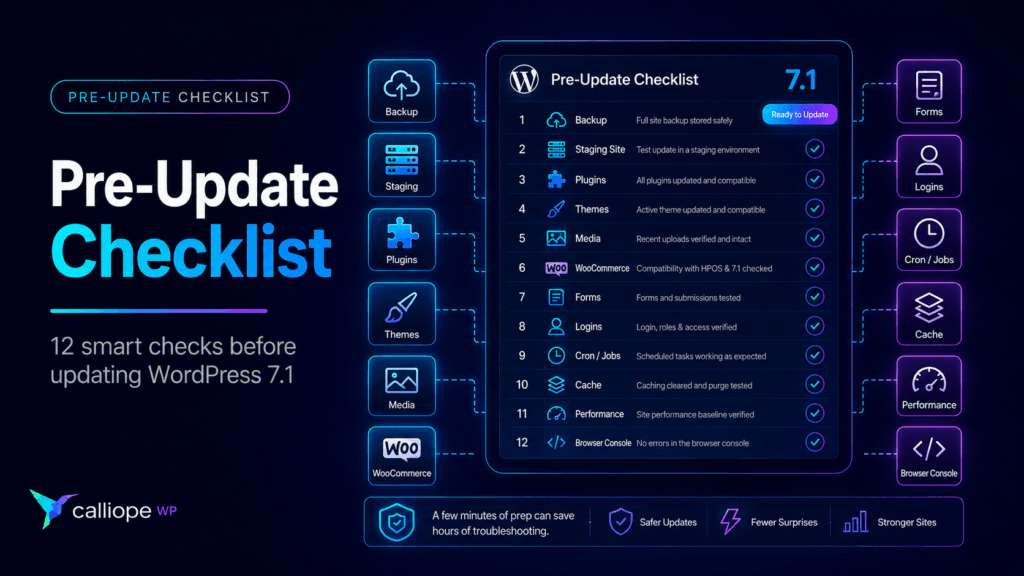
A safe update process does not need to become a week-long project. The amount of testing should match the importance and complexity of the site.
A five-page brochure site and a WooCommerce store processing hundreds of orders a day should not have the same deployment procedure.
1. Create a Backup You Can Actually Restore
Before a major WordPress update, back up both the database and the site files. WordPress itself recommends backing up before updating.
But a backup is only useful if you know how to restore it.
For business-critical sites, confirm:
- When the latest backup was created.
- Whether it contains both files and database data.
- Where it is stored.
- How long a restore would take.
- Who is responsible for initiating the restore.
A backup stored only on the same server as the website provides less protection than an independent copy.
2. Test the Update on Staging First
For an important website, staging is the best place to discover an incompatibility.
Your staging environment should resemble production closely enough to expose real problems. Ideally it should use the same theme, plugins, PHP version, important server extensions, and a recent copy of the database.
Do not use WordPress 7.1 Release Candidates on a production or mission-critical website. WordPress explicitly recommends testing RC builds on test environments instead.
3. Review Plugins Before You Touch Core
Open the Plugins screen and identify the plugins that matter most to the site’s operation.
Pay special attention to plugins responsible for:
- Checkout and payments.
- Membership or user access.
- Forms and lead generation.
- SEO metadata and sitemaps.
- Security and firewalls.
- Caching and optimization.
- Media processing.
- Backups.
- Multilingual content.
- Page building and block editing.
- Custom post types and custom fields.
- Email delivery.
- External API integrations.
Check whether important plugins have recent releases, compatibility notes, or known issues. An abandoned plugin performing a critical function deserves more scrutiny than a tiny utility that has no effect on the front end.
4. Test Your Theme and the Actual Editing Experience
Do not stop after loading the home page.
Open the editor and perform the tasks your team actually uses:
- Create a new post.
- Edit an existing page.
- Insert common blocks.
- Use custom blocks or patterns.
- Open custom sidebars and meta boxes.
- Save a draft.
- Preview the content.
- Publish or update a post.
- Check responsive controls if your theme uses them.
The editor changes in WordPress 7.1 make this especially important for sites with custom editorial interfaces.
5. Upload Several Real Images
Because media processing is one of the larger changes in WordPress 7.1, do more than check whether an existing image still displays.
On staging, upload:
- A large JPEG.
- A PNG with transparency if your site uses them.
- A WebP or AVIF image if part of your workflow.
- An HEIC image if authors upload photos from iPhones.
- An animated GIF if your site uses them.
Then verify the Media Library, generated image sizes, front-end display, optimization plugin behavior, CDN delivery, and any automatic format conversion.
6. Test WooCommerce as a Customer, Not Just as an Administrator
If the site sells anything, run a real staging checkout flow.
Check:
- Product pages.
- Variable products.
- Product galleries.
- Cart updates.
- Coupon codes.
- Checkout validation.
- Payment methods in test mode.
- Shipping calculations.
- Tax calculations.
- Order creation.
- Transactional emails.
- My Account pages.
A site can appear perfectly healthy while a checkout-specific JavaScript error prevents sales.
7. Submit Every Important Form
Contact forms, quote requests, registration forms, newsletter forms, support forms, and lead-generation funnels should be tested end to end.
Do not only check for the success message. Confirm that the submission is stored where expected and that the notification email actually arrives.
8. Check Logins, Roles, and Restricted Content
Membership sites and sites with multiple user roles should test the experience as more than one type of user.
Confirm:
- Login and logout.
- Password reset.
- Registration if enabled.
- Role-based access.
- Protected pages.
- Subscriber or member dashboards.
- Administrator-only settings.
9. Review Scheduled Tasks and Background Jobs
Many WordPress features happen after the page request finishes.
Scheduled publishing, backups, email queues, WooCommerce jobs, synchronization tasks, imports, exports, feeds, and other automated processes can rely on WordPress Cron or plugin-specific queues.
Check Site Health and any plugin-specific queue or scheduler screens that are important to the site.
10. Clear Caches Deliberately
After a Core update, stale assets can make a working site look broken—or hide a real problem behind cached output.
Depending on the stack, you may need to clear:
- WordPress page cache.
- Object cache.
- Server cache.
- CDN cache.
- Optimization/minification cache.
- Browser cache during testing.
Do this in a controlled way rather than repeatedly purging every cache while trying to diagnose an unrelated issue.
11. Compare Performance Before and After
Do not rely on memory when deciding whether an update made the website faster or slower.
Before the update, record a small baseline:
- A few representative front-end page load measurements.
- Admin responsiveness on important screens.
- Memory or CPU behavior during heavy operations if you monitor it.
- Image upload time on media-heavy sites.
Run the same checks after updating. You are looking for meaningful regressions, not tiny variations between individual tests.
12. Check the Browser Console for JavaScript Errors
Visual testing catches many problems, but not all of them.
Open the browser developer console while testing the editor, checkout, forms, and other interactive areas. New JavaScript errors after the update can point directly to a compatibility issue even when the page still appears mostly functional.
A Safer Update Order for Production Sites
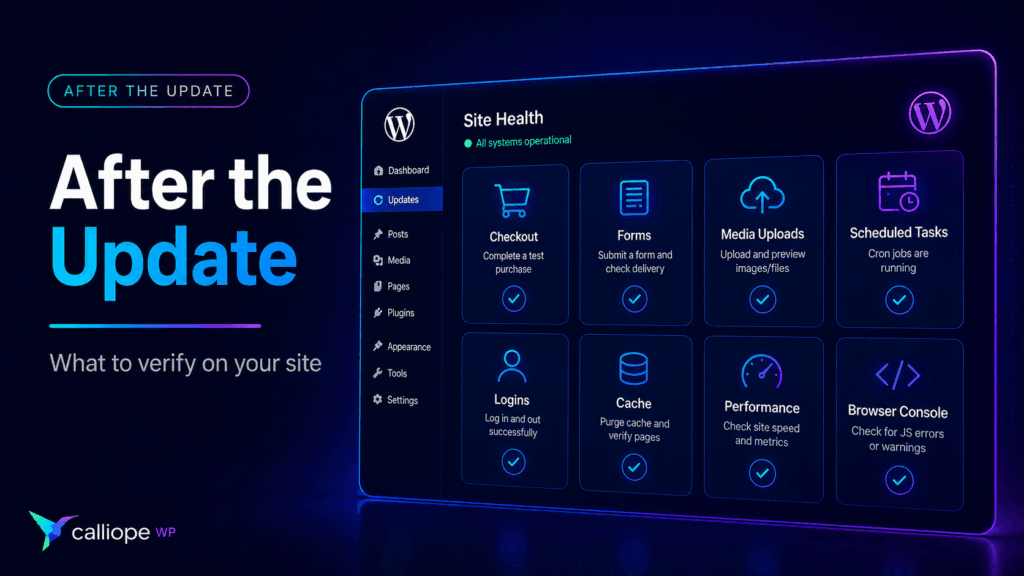
There is no single update order that fits every WordPress site, but agencies benefit from using a consistent deployment routine.
A practical workflow is:
- Make sure the current production site is on the latest applicable security release.
- Create or verify a current backup.
- Clone or refresh staging.
- Update plugins and themes that provide explicit compatibility fixes where appropriate.
- Update WordPress Core on staging.
- Run the site’s critical-path tests.
- Document any compatibility fixes required.
- Schedule the production update during a sensible traffic window.
- Create a fresh production backup immediately before deployment.
- Apply the tested update.
- Clear the necessary caches.
- Repeat the critical-path tests on production.
- Monitor errors, orders, forms, scheduled jobs, and support reports after deployment.
The important part is not whether Core or every plugin is updated first in every situation. The important part is that the production change reproduces a sequence you already tested rather than becoming an improvisation.
What Should Agencies Test on Every Client Site?
Maintaining ten, fifty, or hundreds of WordPress sites requires a different approach from maintaining one personal blog.
Instead of inventing a new checklist for every client, define a minimum smoke test that runs after every major Core update.
For example:
- Home page loads without visible errors.
- One important internal page loads.
- WordPress admin opens normally.
- A post can be edited and saved.
- An image can be uploaded.
- The primary contact form submits successfully.
- Search works if the site depends on it.
- Login works for applicable user types.
- Checkout works on e-commerce sites.
- Scheduled or queued jobs show no obvious failure.
Then add client-specific tests for features that generate revenue or support essential operations.
A law firm may care most about lead forms. An online store cares about checkout. A publication may care about the editor, scheduled posts, media uploads, and ad delivery. A membership site cares about authentication and restricted content.
The update checklist should reflect what the website is actually for.
Should You Update to WordPress 7.1 on Release Day?
There is no universal answer.
For a simple, well-maintained site with current plugins and a reliable backup, updating soon after release may be completely reasonable.
For a high-traffic WooCommerce store, membership platform, custom application, or site with business-critical integrations, it can be reasonable to finish compatibility testing before deploying the major release to production.
What is not a good strategy is ignoring updates for months simply because an update could theoretically cause a problem. Delaying indefinitely creates a different risk: outdated Core, plugins, themes, and dependencies accumulate, making the eventual upgrade larger and harder to test.
Do You Need to Test WordPress 7.1 Before It Is Released?
If you maintain plugins, themes, custom blocks, or complex client sites, testing the current Release Candidate can be valuable because it gives you time to identify incompatibilities before the public release.
WordPress provides several ways to test pre-release builds, including the WordPress Beta Tester plugin, direct downloads, WP-CLI, and WordPress Playground.
Do not install a Release Candidate on a production or mission-critical website. Use staging, a local environment, or a disposable testing site.
Frequently Asked Questions About WordPress 7.1
When Will WordPress 7.1 Be Released?
WordPress 7.1 is scheduled for August 19, 2026, during WordCamp US 2026. Release schedules can still change if critical issues are discovered, so check the official WordPress release channels for the final status.
Is WordPress 7.1 Safe to Install Right Now?
Before the final public release, WordPress 7.1 builds are Release Candidates intended for testing. WordPress recommends evaluating them on test environments rather than production or mission-critical sites.
Should I Back Up WordPress Before Updating to 7.1?
Yes. WordPress documentation recommends backing up before an update. For an important website, make sure the backup includes the database and files and that you understand how to restore it.
Will WordPress 7.1 Include React 19?
No. The React 19 upgrade was deferred beyond WordPress 7.1 and remains experimental in the Gutenberg plugin.
Does WordPress 7.1 Include Real-Time Collaborative Editing?
No. Real-time collaborative editing was tested during the 7.1 development cycle but is not enabled in the final 7.1 release.
What Is the Biggest Change Site Owners Should Test?
That depends on the site, but media-heavy websites should pay particular attention to image uploads because WordPress 7.1 introduces client-side media processing in supported browsers. Sites with custom editor integrations should also test the editing experience carefully because of the more consistent iframe-based editor environment.
Will My Plugins Work with WordPress 7.1?
Many actively maintained plugins will work normally, but compatibility depends on what each plugin does. Plugins that deeply integrate with the editor, media pipeline, administration interface, external libraries, or WordPress internals deserve more testing than simple front-end utilities.
The Best WordPress Update Strategy Is Boring
A good WordPress update should not feel dramatic.
You should know what is changing. You should have a backup. You should know which parts of the site matter most. You should test them before production and check them again afterward.
WordPress 7.1 brings meaningful improvements to media processing, the Media Library, the editor, accessibility, design controls, APIs, and administration. For most well-maintained sites, those changes should become part of the normal evolution of WordPress rather than a reason to fear the Update button.
The sites that are easiest to update are rarely the sites that never change. They are the sites with a repeatable maintenance process.
If you manage WordPress professionally, build that process before you need it.
Last updated: August 10, 2026. WordPress 7.1 is still in the Release Candidate phase at the time of publication. Check the official WordPress release channels for the final release status before updating production sites.